General Information
This page provides general information about PCSX2's features.
Do not run untrusted programs in PCSX2. It is not a sandbox and cannot protect your computer from malicious software.
Graphics API Options
When in doubt, leave the Graphics API setting on Automatic.
Automatic
When the Graphics API is set to Automatic, PCSX2 will choose which graphics API to use depending on your GPU and operating system. Priority is given to stability, then to accuracy. Always use this option if you are unsure.
Software Mode
Renders graphics on your CPU, instead of your GPU, for maximum accuracy. This requires a strong CPU.
Hardware Mode
Vulkan
- Fully featured, very accurate on all platforms.
- Fast on all platforms, but unstable on Intel iGPUs.
- Requires up-to-date GPU drivers.
OpenGL
- Fully featured, very accurate on all platforms.
- Okay on Nvidia, fast but unstable on Intel, slow on AMD.
- Slower than Vulkan in all scenarios.
Direct3D12
- Least accurate, cannot emulate some blending effects.
- No major differences across GPU vendors.
- Requires a Direct3D12 capable GPU.
Direct3D11
- Same accuracy as Direct3D12, slightly slower.
- No major differences across GPU vendors.
Game Properties
The Game Properties feature allows you to configure PCSX2 differently for different games. This can be useful if you run into issues with a particular game, and need to change settings that you don't want affecting other games.
To access the Game Properties dialog for a given game, you can right click on the entry for it in the game list, and click Properties. Alternatively, if the game is currently running, you can use the Settings > Game Properties option in the main menu bar.
Portable Mode
What is Portable mode?
If portable mode is enabled, PCSX2 will store all of its data and configuration files in the same directory as its own executable (.exe) file instead of in a central location (on Windows this central location is the Documents folder).
- To enable portable mode, create an empty
portable.txtorportable.inifile in the same directory as PCSX2's executable (.exe) file. - You can also pass in
-portableas a launch argument to force PCSX2 to run in portable mode.
Save States
What are Save States?
Save states are copies of PCSX2's machine state. Loading a state will cause PCSX2 to jump back to the point in time in the game in which you saved the state. Save states are NOT game saves, and are NOT a suitable replacement for memory cards.
Good uses of save states
- "Bookmarking" your location in a game so you can retry something quickly.
- Temporarily saving your progress in games which limit saving.
Things to avoid with save states
Do not use them to permanently save your game. Save your games normally to your memory cards.
Cheats and patches
Cheats and patches will burn in to save states, and cannot be removed after being burnt in. Errors in a game (e.g. memory leaks) will also burn in to save states.
Save state compatibility
Save state are NOT guaranteed to be compatible across different PCSX2 versions, and for this reason you should not rely on save states as your main game saving method.
Always use your memory card for long-term game saves storage.
PCSX2 will display an error if you try to load a save state that is incompatible with the current running version:
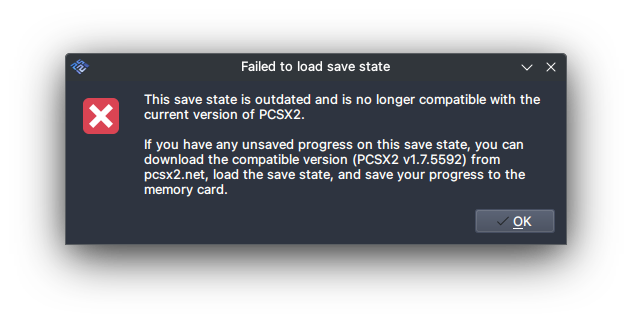
If this happens to you, there are only 2 ways to remedy the problem:
Option #1
- Download the exact version of PCSX2 that is mentioned in the error dialog.
- Start the game in this version of PCSX2 and load your save state.
- Save your game to a memory card using the normal in-game save function.
- Go back to your current PCSX2 version, and load your game from the memory card.
Option #2
You can discard your incompatible save states.
I've been using save states to store progress, how can I fix this?
- Boot your game.
- Load your save state.
- Save your game using the normal in-game save function.
Game-specific issues
Gran Turismo 4 - Rewind Condition
Loading a save state captured before your most recent memory card save will result in the hash in RAM no longer matching the memory card contents. The data on your memory card is now from the future.
What is the game doing?
Gran Turismo 4 only keeps partial information about your garage in RAM at any time. The rest is kept on the memory card for permanent storage. To ensure data consistency, the game stores a hash of your memory card in RAM and uses that to verify that the currently inserted memory card is not changed.
How do I fix this?
If you encounter a rewind condition and the game no longer recognizes your memory card, you have no choice but to boot the game again. Do not load a save state. Let the game boot and load normally from your memory card.