Windows Issues
This page details known issues specific to Windows.
Missing "MSVCP140.dll"
The following error message may appear when launching PCSX2:

You need the Latest Visual C++ x64 Redistributable to run PCSX2.
- Be sure to select the X64 version (outlined in red in the screenshot below). The others will NOT work.
- Run the installer.
- If prompted to restart your computer after installing, be sure to do so.
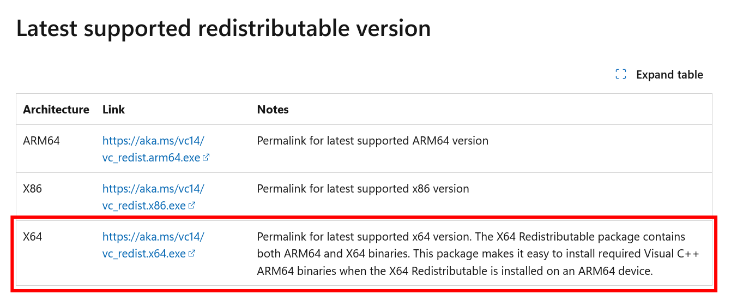
Errors after installing or updating the Visual C++ Runtime
If one of the two following errors occurs after installing or updating the Visual C++ Runtime and restarting your computer:
- The above error referencing "MSVCP140.dll" not being found still persists.
- An error stating that your version of the Visual C++ Runtime is not a compatible version.
You may have files from other Visual C++ Runtime versions which you manually added, and are noe interfering with a proper installation of the runtime. Uninstalling the runtime may help clean up the files you have manually added.
Multiple "Visual C++ Runtime items" will appear in the list; you will want to uninstall the one which matches what you just installed. It will be the most recently installed x64 version in your apps list.
- Uninstall the Visual C++ Runtime.
- Restart your computer.
- Install the Visual C++ Runtime again.
- Restart your computer again.
Crashes
There are various problems that can cause PCSX2 to crash during operation, here we list the most common ones:
Crash when opening setting
If PCSX2 crashes when opening settings or, you get this error message when attempting to launch a game:

This means your GPU drivers are out of date, please update your GPU drivers and try again.
How do I update my GPU driver?
- Intel: Search for your GPU or CPU model
- Nvidia: Search for your GPU model or use GeForce Experience to update drivers automatically
- AMD: Search for your GPU or CPU model, or use the download buttons at the top to update drivers automatically
Make sure you update the drivers for all your GPUs on the system, even if you are not using it for PCSX2. Most notably for laptops, don't forget to also update the driver for the Integrated GPU as well.
Crash when adding a File/Directory to the Game List or opening PCSX2 setting
- This crash are most likely caused by Windows Shell/UI Mods that are installed on the system, notable example are
OldNewExplorer. - To fix this crash, you have to completely remove the offending software as it will interfere with PCSX2 and will cause crashing.
Crashes Due to OpenCL™, OpenGL®, and Vulkan® Compatibility Pack
What is this?
Despite being a compatibility pack, this package does not comply with the Vulkan specification. Installing this package will cause PCSX2 and possibly other applications using Vulkan to crash. On most systems this package is completely unnecessary, if proper GPU drivers are installed.
For ROG Ally Users
ASUS seems to have installed this package by default on the ROG Ally, despite it being broken and not necessary, as the ROG Ally has a fully featured GPU driver. You will need to uninstall it to use PCSX2.
How do I uninstall this?
Hit Start, Settings, Apps, then find OpenCL™, OpenGL®, and Vulkan® Compatibility Pack in the list. Click it, then hit Uninstall. Once uninstalled, reboot your PC.